
หลังจากที่เราได้ดูฮาร์ดแวร์ การแกะกล่อง การแกะเครื่อง และการเปิดใช้งาน (Part 1) รวมถึงการทดสอบประสิทธิภาพบน Windows 11 (Part 2) ของมินิพีซี VZMORE iX9 Max ซีพียู Intel Core Ultra 9 185H (Meteor Lake) แบบ 16 คอร์ 22 เธรด ความเร็ว Boost สูงสุด 5.1GHz มาพร้อม GPU ในตัว Intel Arc ที่มี 8 Xe Cores และชิป Intel AI Boost NPU สำหรับประมวลผลงาน AI โดยเฉพาะ ให้ประสิทธิภาพสูงสุด 11 TOPS, RAM LPDDR5 ขนาด 24GB และ SSD แบบ M.2 NVMe ความจุ 1TB, รองรับการแสดงผลพร้อมกันสูงสุด 4 จอ ผ่านพอร์ต HDMI 2.0 และ USB4 นอกจากนี้ยังมีพอร์ต USB Type-A จำนวน 6 พอร์ต, USB4 ความเร็ว 40Gbps จำนวน 2 พอร์ต, Ethernet 2.5GbE จำนวน 2 พอร์ต, รองรับ Wi-Fi 7 และ Bluetooth 5.4 พร้อมติดตั้งระบบปฏิบัติการ Windows 11 Pro มาให้เรียบร้อยแล้ว
ในบทความนี้ เราจะทำการติดตั้ง Ubuntu 26.04.1 เพื่อทดสอบประสิทธิภาพบนระบบปฏิบัติการ Ubuntu Linux บนซีพียู Intel Core Ultra 9 185H โดยจะครอบคลุมถึงภาพรวมซอฟต์แวร์และระบบ, ทดสอบประสิทธิภาพ Benchmarks, ทดสอบประสิทธิภาพเครือข่าย Wi-Fi 7, การทดสอบ Stress Test และอุณหภูมิ CPU, เสียงของพัดลม และการใช้พลังงานของมินิพีซี รวมถึงการเปรียบเทียบมินิพีซี Intel Core Ultra 9 185H ที่เราเคยรีวิวมาแล้วอย่าง GEEKOM IT13 Max (LPDDR5 24GB + SSD 500GB) ควบคู่กันไป
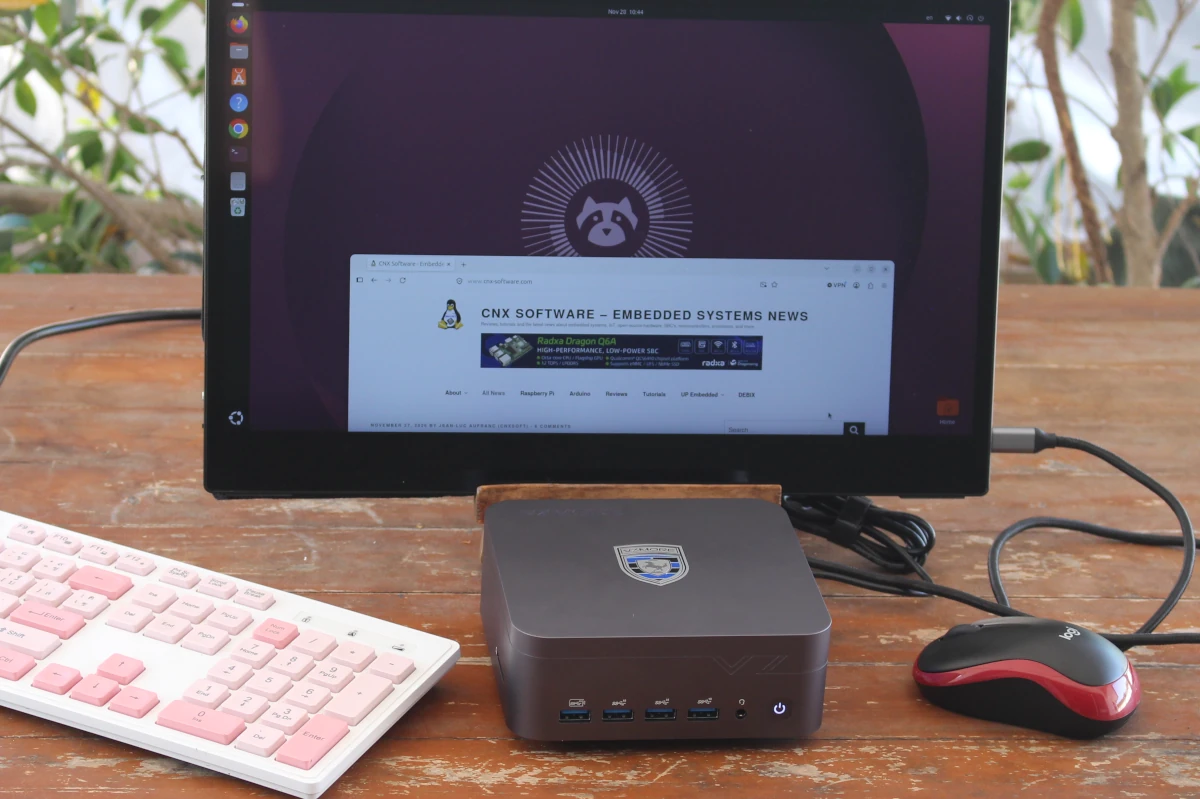
ข้อมูลระบบบน Ubuntu 26.04.1
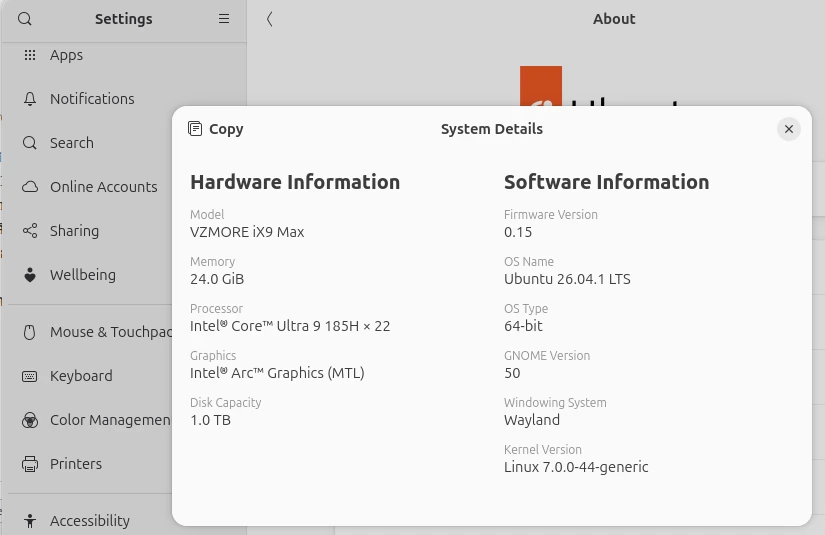
เมนู Settings -> About ระบบแสดงข้อมูลเป็นมินิพีซี VZMORE iX9 Max, หน่วยความจำ 24GB, โปรเซสเซอร์ Intel Core Ultra 9 185H × 22 พร้อม Intel Arc Graphics (MTL), สตอเรจ 1TB, พร้อมระบบปฏิบัติการ Ubuntu 26.04.1 LTS
เราสามารถตรวจสอบข้อมูลเพิ่มเติมผ่าน Terminal ได้
|
1 2 3 4 5 6 7 8 9 10 11 12 13 14 15 16 17 18 19 20 21 22 23 24 25 26 27 28 29 |
aey@ix9-max-CNX:~$ cat /etc/lsb-release DISTRIB_ID=Ubuntu DISTRIB_RELEASE=26.04 DISTRIB_CODENAME=resolute DISTRIB_DESCRIPTION="Ubuntu 26.04.1 LTS" aey@ix9-max-CNX:~$ uname -a Linux ix9-max-CNX 7.0.0-44-generic #44-Ubuntu SMP PREEMPT_DYNAMIC Fri Nov 6 02:38:04 UTC 2026 x86_64 GNU/Linux aey@ix9-max-CNX:~$ free -mh total used free shared buff/cache available Mem: 22Gi 2.8Gi 18Gi 639Mi 2.0Gi 19Gi Swap: 8.0Gi 0B 8.0Gi aey@ix9-max-CNX:~$ df -mh Filesystem Size Used Avail Use% Mounted on tmpfs 4.5G 3.0M 4.5G 1% /run /dev/nvme0n1p5 468G 16G 428G 4% / tmpfs 12G 0 12G 0% /dev/shm efivarfs 192K 125K 63K 67% /sys/firmware/efi/efivars none 1.0M 0 1.0M 0% /run/credentials/systemd-journald.service none 1.0M 0 1.0M 0% /run/credentials/systemd-resolved.service /dev/nvme0n1p1 296M 71M 226M 24% /boot/efi tmpfs 12G 1.6M 12G 1% /tmp tmpfs 2.3G 104K 2.3G 1% /run/user/1000 aey@ix9-max-CNX:~$ lsblk | grep nvme nvme0n1 259:0 0 953.9G 0 disk ├─nvme0n1p1 259:1 0 300M 0 part /boot/efi ├─nvme0n1p2 259:2 0 16M 0 part ├─nvme0n1p3 259:3 0 476.7G 0 part ├─nvme0n1p4 259:4 0 1.3G 0 part └─nvme0n1p5 259:5 0 475.6G 0 part / |
ข้อมูล inxi :
|
1 2 3 4 5 6 7 8 9 10 11 12 13 14 15 16 17 18 19 20 21 22 23 24 25 26 27 28 29 30 31 32 33 34 35 36 37 38 39 40 41 42 43 44 45 46 47 48 49 50 51 52 53 54 55 |
aey@ix9-max-CNX:~$ sudo inxi -Fc0 System: Host: ix9-max-CNX Kernel: 7.0.0-44-generic arch: x86_64 bits: 64 Desktop: GNOME v: 50.1 Distro: Ubuntu 26.04.1 LTS (Resolute Raccoon) Machine: Type: Desktop Mobo: VZMORE model: iX9 Max v: 1.0 serial: N/A Firmware: UEFI vendor: American Megatrends LLC. v: 0.15 date: 09/14/2026 CPU: Info: 16-core (6-mt/10-st) model: Intel Core Ultra 9 185H bits: 64 type: MST AMCP cache: L2: 18 MiB Speed (MHz): avg: 400 min/max: 400/4800:5100:3800:2500 cores: 1: 400 2: 400 3: 400 4: 400 5: 400 6: 400 7: 400 8: 400 9: 400 10: 400 11: 400 12: 400 13: 400 14: 400 15: 400 16: 400 17: 400 18: 400 19: 400 20: 400 21: 400 22: 400 Graphics: Device-1: Intel Meteor Lake-P [Intel Arc Graphics] driver: i915 v: kernel Display: unspecified server: X.Org v: 24.1.10 with: Xwayland v: 24.1.10 driver: dri: iris gpu: i915 resolution: 1: 1920x1080~60Hz 2: 1920x1080~60Hz API: EGL v: 1.5 drivers: iris,swrast platforms: gbm,x11,surfaceless,device API: OpenGL v: 4.6 compat-v: 4.5 vendor: intel mesa v: 26.0.8-1ubuntu0.3 renderer: Mesa Intel Arc Graphics (MTL) Info: Tools: api: eglinfo,glxinfo x11: xdriinfo, xdpyinfo, xprop, xrandr Audio: Device-1: Intel Meteor Lake-P HD Audio driver: sof-audio-pci-intel-mtl Device-2: Linux Foundation Multifunction Composite Gadget driver: cdc_acm,hid-generic,snd-usb-audio,usbhid type: USB API: ALSA v: k7.0.0-44-generic status: kernel-api Network: Device-1: Intel Ethernet I226-V driver: igc IF: enp88s0 state: down mac: 38:f7:cd:e1:2c:c7 Device-2: Intel Ethernet I226-V driver: igc IF: enp89s0 state: down mac: 38:f7:cd:e1:21:0f Device-3: MEDIATEK MT7925 802.11be 160MHz 2x2 PCIe Wireless Network Adapter [Filogic 360] driver: mt7925e IF: wlp90s0 state: up mac: 64:97:46:20:4b:24 Bluetooth: Device-1: IMC Networks Wireless_Device driver: btusb type: USB Report: hciconfig ID: hci0 rfk-id: 0 state: down bt-service: enabled,running rfk-block: hardware: no software: no address: 00:00:00:00:00:00 Drives: Local Storage: total: 953.87 GiB used: 15.76 GiB (1.7%) ID-1: /dev/nvme0n1 vendor: Lexar model: SSD NQ7A1 1TB size: 953.87 GiB Partition: ID-1: / size: 467.05 GiB used: 15.7 GiB (3.4%) fs: ext4 dev: /dev/nvme0n1p5 ID-2: /boot/efi size: 296 MiB used: 70.1 MiB (23.7%) fs: vfat dev: /dev/nvme0n1p1 Swap: ID-1: swap-1 type: file size: 8 GiB used: 0 KiB (0.0%) file: /swap.img Sensors: System Temperatures: cpu: 38.0 C mobo: N/A Fan Speeds (rpm): N/A Info: Memory: total: 24 GiB note: est. available: 22.49 GiB used: 3.5 GiB (15.5%) Processes: 435 Uptime: 13m Shell: Sudo inxi: 3.3.40 |
Inxi แสดงข้อมูลฮาร์ดแวร์หลักของระบบ โดยซีพียู Intel Core Ultra 9 185H มี 16 คอร์ 22 เธรด แบ่งเป็น P-core ที่มีความเร็วสูงสุด 5.1GHz, E-core สูงสุด 3.8GHz และ LP E-core สูงสุด 2.5GHz, Intel Arc Graphics, คอนโทรลเลอร์ Intel i226-V 2.5GbE จำนวน 2 ตัว, ชิปควบคุม Wi-Fi 7 : MEDIATEK MT7925 802.11be 160MHz 2×2 PCIe Wireless Network
แต่ Bluetooth ไม่ทำงาน เราจึงทำการ รีสตาร์ต Bluetooth โดยเปิด Terminal แล้วรันคำสั่ง:
|
1 2 3 4 |
sudo rfkill unblock bluetooth sudo systemctl restart bluetooth sudo modprobe -r btusb sudo modprobe btusb |
จากนั้นตรวจสอบสถานะด้วย
|
1 2 3 4 5 6 7 8 9 10 11 12 13 14 15 16 17 18 19 20 21 22 23 24 25 26 27 28 29 30 31 32 33 34 35 36 37 38 39 40 41 42 43 44 45 46 47 48 49 50 |
aey@ix9-max-CNX:~$ bluetoothctl show Controller 64:97:46:20:4B:25 (public) Manufacturer: 0x0046 (70) Version: 0x0d (13) Name: ix9-max-CNX Alias: ix9-max-CNX Class: 0x007c0104 (8126724) Powered: yes PowerState: on Discoverable: yes DiscoverableTimeout: 0x000000b4 (180) Pairable: yes UUID: Message Notification Se.. (00001133-0000-1000-8000-00805f9b34fb) UUID: A/V Remote Control (0000110e-0000-1000-8000-00805f9b34fb) UUID: OBEX Object Push (00001105-0000-1000-8000-00805f9b34fb) UUID: Vendor specific (03b80e5a-ede8-4b33-a751-6ce34ec4c700) UUID: Message Access Server (00001132-0000-1000-8000-00805f9b34fb) UUID: PnP Information (00001200-0000-1000-8000-00805f9b34fb) UUID: IrMC Sync (00001104-0000-1000-8000-00805f9b34fb) UUID: Vendor specific (00005005-0000-1000-8000-0002ee000001) UUID: A/V Remote Control Target (0000110c-0000-1000-8000-00805f9b34fb) UUID: Generic Attribute Profile (00001801-0000-1000-8000-00805f9b34fb) UUID: Phonebook Access Server (0000112f-0000-1000-8000-00805f9b34fb) UUID: Device Information (0000180a-0000-1000-8000-00805f9b34fb) UUID: Audio Sink (0000110b-0000-1000-8000-00805f9b34fb) UUID: Phonebook Access Client (0000112e-0000-1000-8000-00805f9b34fb) UUID: Generic Access Profile (00001800-0000-1000-8000-00805f9b34fb) UUID: Handsfree Audio Gateway (0000111f-0000-1000-8000-00805f9b34fb) UUID: Audio Source (0000110a-0000-1000-8000-00805f9b34fb) UUID: OBEX File Transfer (00001106-0000-1000-8000-00805f9b34fb) UUID: Handsfree (0000111e-0000-1000-8000-00805f9b34fb) Modalias: usb:v1D6Bp0246d0555 Discovering: yes Roles: central Roles: peripheral Advertising Features: ActiveInstances: 0x00 (0) SupportedInstances: 0x10 (16) SupportedIncludes: tx-power SupportedIncludes: appearance SupportedIncludes: local-name SupportedSecondaryChannels: 1M SupportedSecondaryChannels: 2M SupportedSecondaryChannels: Coded SupportedCapabilities.MinTxPower: 0xffffffe7 (-25) SupportedCapabilities.MaxTxPower: 0x000a (10) SupportedCapabilities.MaxAdvLen: 0xfb (251) SupportedCapabilities.MaxScnRspLen: 0xfb (251) SupportedFeatures: CanSetTxPower SupportedFeatures: HardwareOffload |
จากนั้นตรวจสอบสถานะด้วยคำสั่ง bluetoothctl show พบว่า Bluetooth Controller กลับมาทำงานได้ตามปกติ โดยแสดง MAC Address เป็น 64:97:46:20:4B:25 และมีสถานะ Powered: yes พร้อมรองรับการค้นหาและจับคู่อุปกรณ์ Bluetooth ได้
และรันคำสั่ง sudo inxi -Fc0 อีกครั้ง
|
1 2 3 4 5 6 7 8 9 10 11 12 13 14 15 16 17 18 19 20 21 22 23 24 25 26 27 28 29 30 31 32 33 34 35 36 37 38 39 40 41 42 43 44 45 46 47 48 49 50 51 52 53 |
aey@ix9-max-CNX:~$ sudo inxi -Fc0 System: Host: ix9-max-CNX Kernel: 7.0.0-44-generic arch: x86_64 bits: 64 Desktop: GNOME v: 50.1 Distro: Ubuntu 26.04.1 LTS (Resolute Raccoon) Machine: Type: Desktop Mobo: VZMORE model: iX9 Max v: 1.0 serial: N/A Firmware: UEFI vendor: American Megatrends LLC. v: 0.15 date: 09/14/2026 CPU: Info: 16-core (6-mt/10-st) model: Intel Core Ultra 9 185H bits: 64 type: MST AMCP cache: L2: 18 MiB Speed (MHz): avg: 400 min/max: 400/4800:5100:3800:2500 cores: 1: 400 2: 400 3: 400 4: 400 5: 400 6: 400 7: 400 8: 400 9: 400 10: 400 11: 400 12: 400 13: 400 14: 400 15: 400 16: 400 17: 400 18: 400 19: 400 20: 400 21: 400 22: 400 Graphics: Device-1: Intel Meteor Lake-P [Intel Arc Graphics] driver: i915 v: kernel Display: unspecified server: X.Org v: 24.1.10 with: Xwayland v: 24.1.10 driver: dri: iris gpu: i915 resolution: 1: 1920x1080~60Hz 2: 1920x1080~60Hz API: EGL v: 1.5 drivers: iris,swrast platforms: gbm,x11,surfaceless,device API: OpenGL v: 4.6 compat-v: 4.5 vendor: intel mesa v: 26.0.8-1ubuntu0.3 renderer: Mesa Intel Arc Graphics (MTL) Info: Tools: api: eglinfo,glxinfo x11: xdriinfo, xdpyinfo, xprop, xrandr Audio: Device-1: Intel Meteor Lake-P HD Audio driver: sof-audio-pci-intel-mtl Device-2: Linux Foundation Multifunction Composite Gadget driver: cdc_acm,hid-generic,snd-usb-audio,usbhid type: USB API: ALSA v: k7.0.0-44-generic status: kernel-api Network: Device-1: Intel Ethernet I226-V driver: igc IF: enp88s0 state: down mac: 38:f7:cd:e1:2c:c7 Device-2: Intel Ethernet I226-V driver: igc IF: enp89s0 state: down mac: 38:f7:cd:e1:21:0f Device-3: MEDIATEK MT7925 802.11be 160MHz 2x2 PCIe Wireless Network Adapter [Filogic 360] driver: mt7925e IF: wlp90s0 state: up mac: 64:97:46:20:4b:24 Bluetooth: Device-1: IMC Networks Wireless_Device driver: btusb type: USB Report: hciconfig ID: hci1 state: up address: 64:97:46:20:4B:25 bt-v: 5.4 Drives: Local Storage: total: 953.87 GiB used: 15.81 GiB (1.7%) ID-1: /dev/nvme0n1 vendor: Lexar model: SSD NQ7A1 1TB size: 953.87 GiB Partition: ID-1: / size: 467.05 GiB used: 15.74 GiB (3.4%) fs: ext4 dev: /dev/nvme0n1p5 ID-2: /boot/efi size: 296 MiB used: 70.1 MiB (23.7%) fs: vfat dev: /dev/nvme0n1p1 Swap: ID-1: swap-1 type: file size: 8 GiB used: 0 KiB (0.0%) file: /swap.img Sensors: System Temperatures: cpu: 38.0 C mobo: N/A Fan Speeds (rpm): N/A Info: Memory: total: 24 GiB note: est. available: 22.49 GiB used: 4.04 GiB (18.0%) Processes: 441 Uptime: 54m Shell: Sudo inxi: 3.3.40 |
มาดูข้อมูลอื่นเพิ่มเติม ได้แก่ SSD : Lexar model: SSD NQ7A1 1TB, อุณหภูมิของ CPU 38°C ซึ่งเราจะทำการทดสอบอีกครั้ง
Ubuntu 26.04.1 Benchmarks บนมินิพีซี VZMORE iX9 Max
เราใช้สคริปต์ sbc-bench :
|
1 2 3 4 5 6 7 8 9 10 11 12 13 14 15 16 17 18 19 20 21 22 23 24 25 26 27 28 29 30 31 32 33 34 35 36 37 38 39 40 41 42 43 44 45 46 47 48 49 50 51 52 53 54 55 56 57 58 59 60 61 62 63 64 65 66 67 68 69 70 71 72 73 74 75 76 77 78 79 80 81 82 83 84 85 86 87 88 89 90 91 92 93 94 95 96 97 98 99 100 101 102 103 104 105 106 107 108 109 110 111 112 113 114 115 116 117 118 119 120 121 122 123 124 125 126 127 128 129 130 131 132 133 134 135 136 137 138 139 |
aey@ix9-max-CNX:~/Downloads/sbc-bench-master$ sudo ./sbc-bench.sh -r [sudo: authenticate] Password: Starting to examine hardware/software for review purposes... Average load and/or CPU utilization too high (too much background activity). Waiting... sbc-bench v0.9.72 Installing needed tools: apt-get -f -qq -y install gcc make build-essential powercap-utils curl git links mmc-utils smartmontools stress-ng, p7zip 16.02, tinymembench, ramlat, mhz, cpufetch, cpuminer. Done. Checking cpufreq OPP. Done. Executing tinymembench. Done. Executing RAM latency tester. Done. Executing OpenSSL benchmark. Done. Executing 7-zip benchmark. Done. Throttling test: heating up the device, 5 more minutes to wait. Done. Checking cpufreq OPP again. Done (17 minutes elapsed). Results validation: * Measured clockspeed not lower than advertised max CPU clockspeed * No swapping * Background activity (%system) OK * Powercap detected. Details: "sudo powercap-info -p intel-rapl" -> https://tinyurl.com/4jh9nevj # VZMORE iX9 Max 1.0 / Ultra 9 185H Tested with sbc-bench v0.9.72 on Sun, 22 Nov 2026 12:42:32 +0700. ### General information: The CPU features 3 clusters of different core types: Ultra 9 185H, Kernel: x86_64, Userland: amd64 CPU sysfs topology (clusters, cpufreq members, clockspeeds) cpufreq min max CPU cluster policy speed speed core type 0 0 0 400 4800 Redwood Cove 1 0 1 400 5100 Redwood Cove 2 0 2 400 5100 Redwood Cove 3 0 3 400 5100 Redwood Cove 4 0 4 400 5100 Redwood Cove 5 0 5 400 4800 Redwood Cove 6 0 6 400 4800 Redwood Cove 7 0 7 400 4800 Redwood Cove 8 0 8 400 4800 Redwood Cove 9 0 9 400 4800 Redwood Cove 10 0 10 400 4800 Redwood Cove 11 0 11 400 4800 Redwood Cove 12 0 12 400 3800 Crestmont 13 0 13 400 3800 Crestmont 14 0 14 400 3800 Crestmont 15 0 15 400 3800 Crestmont 16 0 16 400 3800 Crestmont 17 0 17 400 3800 Crestmont 18 0 18 400 3800 Crestmont 19 0 19 400 3800 Crestmont 20 0 20 400 2500 Crestmont 21 0 21 400 2500 Crestmont 23025 KB available RAM ### Policies (performance vs. idle consumption): Status of performance related policies found below /sys: /sys/module/pcie_aspm/parameters/policy: default [performance] powersave powersupersave ### Clockspeeds (idle vs. heated up): Before at 49.0°C: cpu0-cpu11 (Redwood Cove): OPP: 4800, Measured: 4782 cpu12-cpu19 (Crestmont): OPP: 3800, Measured: 3783 cpu20-cpu21 (Crestmont): OPP: 2500, Measured: 2488 After at 71.0°C: cpu0-cpu11 (Redwood Cove): OPP: 4800, Measured: 4784 cpu12-cpu19 (Crestmont): OPP: 3800, Measured: 3785 cpu20-cpu21 (Crestmont): OPP: 2500, Measured: 2488 ### Performance baseline * cpu0 (Redwood Cove): memcpy: 20181.0 MB/s, memchr: 23169.2 MB/s, memset: 41991.8 MB/s * cpu12 (Crestmont): memcpy: 10923.5 MB/s, memchr: 17103.2 MB/s, memset: 21994.7 MB/s * cpu20 (Crestmont): memcpy: 8721.5 MB/s, memchr: 8564.0 MB/s, memset: 14461.3 MB/s * cpu0 (Redwood Cove) 16M latency: 24.99 20.17 27.22 20.39 21.84 20.58 20.85 23.64 * cpu12 (Crestmont) 16M latency: 32.26 27.18 29.80 27.36 29.45 26.75 25.69 26.86 * cpu20 (Crestmont) 16M latency: 198.4 202.3 200.6 204.2 198.6 193.4 192.3 199.3 * cpu0 (Redwood Cove) 128M latency: 164.6 141.7 158.4 140.4 158.2 126.8 119.7 115.3 * cpu12 (Crestmont) 128M latency: 164.3 142.5 168.1 147.4 163.5 148.0 147.4 145.9 * cpu20 (Crestmont) 128M latency: 220.3 226.0 217.3 227.3 218.5 216.4 220.6 230.8 * 7-zip MIPS (3 consecutive runs): 64289, 63939, 60852 (63030 avg), single-threaded: 5425 * `aes-256-cbc 1384948.23k 1657805.57k 1688860.76k 1695910.23k 1697857.54k 1697300.48k (Redwood Cove)` * `aes-256-cbc 1099121.27k 1315391.62k 1329148.59k 1352688.64k 1368784.90k 1373973.16k (Crestmont)` * `aes-256-cbc 723503.00k 865177.90k 874042.28k 890070.70k 902681.94k 903583.06k (Crestmont)` ### PCIe and storage devices: * Intel Meteor Lake-P [Intel Arc Graphics] (Onboard - Video): driver in use: i915 * Intel Core Ultra 200 Series Processors USB xHCI (Onboard - Other): driver in use: xhci_hcd * Intel Core Ultra 200 Series Processors Thunderbolt DMA0 (Onboard - Other): driver in use: thunderbolt * Intel Meteor Lake-P USB 3.2 Gen 2x1 xHCI Host (Onboard - Other): driver in use: xhci_hcd * Intel Device 7e63 (Onboard - SATA): driver in use: ahci * Intel Ethernet I226-V: Speed 5GT/s, Width x1, driver in use: igc, ASPM Disabled * Intel Ethernet I226-V: Speed 5GT/s, Width x1, driver in use: igc, ASPM Disabled * MEDIATEK MT7925 802.11be 160MHz 2x2 PCIe Wireless Network Adapter [Filogic 360]: Speed 5GT/s, Width x1, driver in use: mt7925e, ASPM Disabled * 953.9GB "Lexar SSD NQ7A1 1TB" SSD as /dev/nvme0: Speed 16GT/s, Width x4, 1% worn out, drive temp: 48°C, ASPM Disabled * 32MB SPI NOR flash, drivers in use: spi-nor/intel-spi ### Challenging filesystems: The following partitions are NTFS: nvme0n1p3,nvme0n1p4 -> https://tinyurl.com/mv7wvzct ### Swap configuration: * /swap.img on /dev/nvme0n1p5: 8.0G (0K used) ### Software versions: * Ubuntu 26.04.1 LTS (resolute) * Compiler: /usr/bin/gcc (Ubuntu 15.2.0-16ubuntu1) 15.2.0 / x86_64-linux-gnu * OpenSSL 3.5.5, built on 27 Jan 2026 (Library: OpenSSL 3.5.5 27 Jan 2026) ### Kernel info: * `/proc/cmdline: BOOT_IMAGE=/boot/vmlinuz-7.0.0-44-generic root=UUID=b0a1731a-361b-437b-8e98-9dd5e0d5702d ro quiet splash crashkernel=2G-4G:320M,4G-32G:512M,32G-64G:1024M,64G-128G:2048M,128G-:4096M` * Vulnerability Spec store bypass: Mitigation; Speculative Store Bypass disabled via prctl * Vulnerability Spectre v1: Mitigation; usercopy/swapgs barriers and __user pointer sanitization * Vulnerability Vmscape: Mitigation; IBPB before exit to userspace * Kernel 7.0.0-44-generic / CONFIG_HZ=1000 Waiting for the device to cool down...................................... 48.0°C |
ผลการทดสอบด้วย 7-Zip แสดงให้เห็นว่าประสิทธิภาพมีแนวโน้มลดลงเมื่อเกิดความร้อนสะสม โดยคะแนนลดลงในแต่ละรอบการทดสอบ จาก 64,289, 63,939 และ 60,852 MIPS ตามลำดับ ได้คะแนนเฉลี่ย 63,030 MIPS
เราตรวจสอบการจำกัดพลังงาน:
|
1 2 3 4 5 6 7 8 9 10 11 12 13 14 15 16 17 18 19 20 21 22 23 24 25 26 27 28 29 30 31 32 33 34 35 36 37 38 39 40 41 42 43 44 45 46 47 48 49 50 51 52 53 |
aey@ix9-max-CNX:~$ sudo powercap-info -p intel-rapl [sudo: authenticate] Password: enabled: 1 Zone 0 name: package-0 enabled: 1 max_energy_range_uj: 262143328850 energy_uj: 64813596772 Constraint 0 name: long_term power_limit_uw: 45000000 time_window_us: 55967744 max_power_uw: 45000000 Constraint 1 name: short_term power_limit_uw: 70000000 time_window_us: 2440 max_power_uw: 0 Constraint 2 name: peak_power power_limit_uw: 120000000 max_power_uw: 0 Zone 0:0 name: core enabled: 0 max_energy_range_uj: 262143328850 energy_uj: 31149677824 Constraint 0 name: long_term power_limit_uw: 0 time_window_us: 976 Zone 0:1 name: uncore enabled: 0 max_energy_range_uj: 262143328850 energy_uj: 379728214 Constraint 0 name: long_term power_limit_uw: 0 time_window_us: 976 Zone 1 name: psys enabled: 0 max_energy_range_uj: 262143328850 energy_uj: 2296327678 Constraint 0 name: long_term power_limit_uw: 0 time_window_us: 27983872 Constraint 1 name: short_term power_limit_uw: 0 time_window_us: 976 |
ระดับจำกัดการใช้พลังงาน PL1 และ PL2 ถูกตั้งไว้ที่ 45W (PBP) และ 70W (MTP) ตามลำดับ ขณะที่ PL4 (Peak Power) ถูกตั้งไว้ที่ 120W ซึ่งเป็นค่าเดียวกันกับที่พบใน Windows 11 Pro และ GEEKOM IT13 Max
เราสามารถทดสอบประสิทธิภาพของ CPU ได้ด้วยการรัน Geekbench 7.0 ทั้งการทดสอบแบบ Single-Core และ Multi-Core
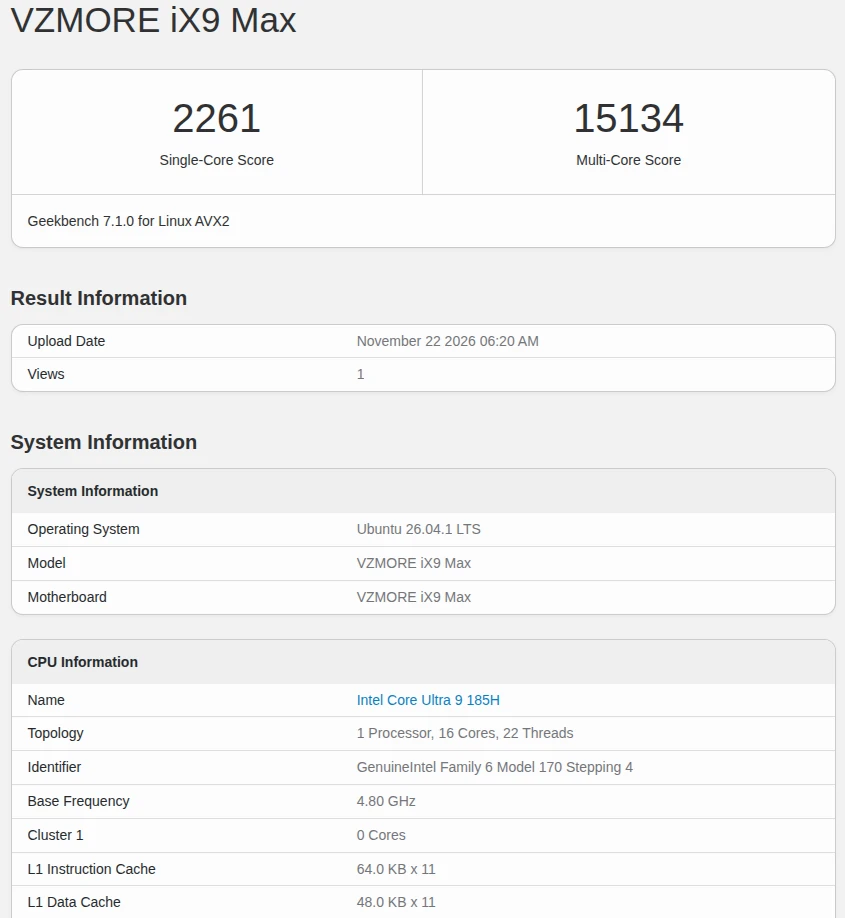
Single-Core ได้ 2,261 คะแนน และ Multi-Core ได้ 15,134 คะแนน
โปรเซสเซอร์ x86 มี AI accelerator ในตัว เราจึงได้ทดลองใช้ Geekbench AI ด้วยเช่นกัน อย่างไรก็ตาม ตามค่าเริ่มต้น โปรแกรมจะตรวจพบเฉพาะ CPU backend เท่านั้น:
|
1 2 3 4 5 6 7 8 9 10 11 12 13 14 15 |
aey@ix9-max-CNX:~/Downloads/GeekbenchAI-1.8.0-Linux$ ./banff --ai-list Geekbench AI 1.8.0 : https://www.geekbench.com/ai/ Geekbench AI requires an active internet connection and automatically uploads benchmark results to the Geekbench Browser. +-----------------+----+---------+----+--------------------------------+----+ | Framework | ID | Backend | ID | Device | ID | +-----------------+----+---------+----+--------------------------------+----+ | TensorFlow Lite | 1 | CPU | 1 | Intel Core Ultra 9 185H | 0 | +-----------------+----+---------+----+--------------------------------+----+ | ONNX | 3 | CPU | 1 | Intel Core Ultra 9 185H | 0 | +-----------------+----+---------+----+--------------------------------+----+ | OpenVINO | 4 | CPU | 1 | Intel(R) Core(TM) Ultra 9 185H | 0 | +-----------------+----+---------+----+--------------------------------+----+a |
เพื่อแก้ไขปัญหาเกี่ยวกับ GPU เราได้ติดตั้งแพ็กเกจเพิ่มเติมบางส่วนจาก PPA อย่างเป็นทางการของ Intel/Kobuk Graphics:
|
1 2 3 4 |
sudo add-apt-repository -y ppa:kobuk-team/intel-graphics sudo apt update sudo apt install -y ocl-icd-libopencl1 libze-intel-gpu1 libze1 intel-opencl-icd intel-metrics-discovery clinfo intel-gsc sudo usermod -a -G render $USER |
หลังจากรีบูตเครื่อง ระบบสามารถตรวจพบ GPU:
|
1 2 3 4 5 6 7 8 9 10 11 12 13 14 15 16 17 |
aey@ix9-max-CNX:~/Downloads/GeekbenchAI-1.8.0-Linux$ ./banff --ai-list Geekbench AI 1.8.0 : https://www.geekbench.com/ai/ Geekbench AI requires an active internet connection and automatically uploads benchmark results to the Geekbench Browser. +-----------------+----+---------+----+----------------------------------+----+ | Framework | ID | Backend | ID | Device | ID | +-----------------+----+---------+----+----------------------------------+----+ | TensorFlow Lite | 1 | CPU | 1 | Intel Core Ultra 9 185H | 0 | +-----------------+----+---------+----+----------------------------------+----+ | ONNX | 3 | CPU | 1 | Intel Core Ultra 9 185H | 0 | +-----------------+----+---------+----+----------------------------------+----+ | OpenVINO | 4 | CPU | 1 | Intel(R) Core(TM) Ultra 9 185H | 0 | +-----------------+----+---------+----+----------------------------------+----+ | OpenVINO | 4 | GPU | 2 | Intel(R) Arc(TM) Graphics (iGPU) | 1 | +-----------------+----+---------+----+----------------------------------+----+a |
นอกจากนี้ เรายังได้ลองเปิดใช้งาน NPU เหมือนที่ทำบน IT13 Max แต่ก็ยังไม่สำเร็จ แต่ Geekbench AI กลับไม่สามารถตรวจพบ NPU ได้
มาทดสอบ Geekbench AI ด้วย CPU (OpenVINO)
|
1 |
./banff --ai-framework 4 --ai-backend 1 |
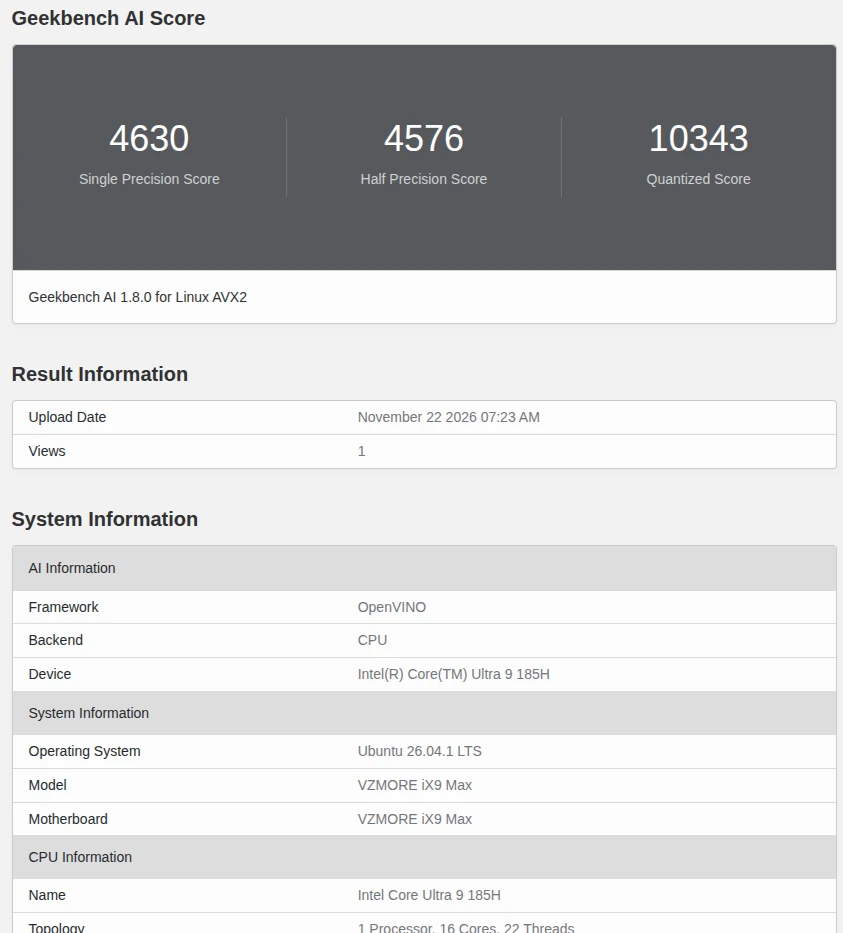
และ GPU
|
1 |
./banff --ai-framework 4 --ai-backend 2 |
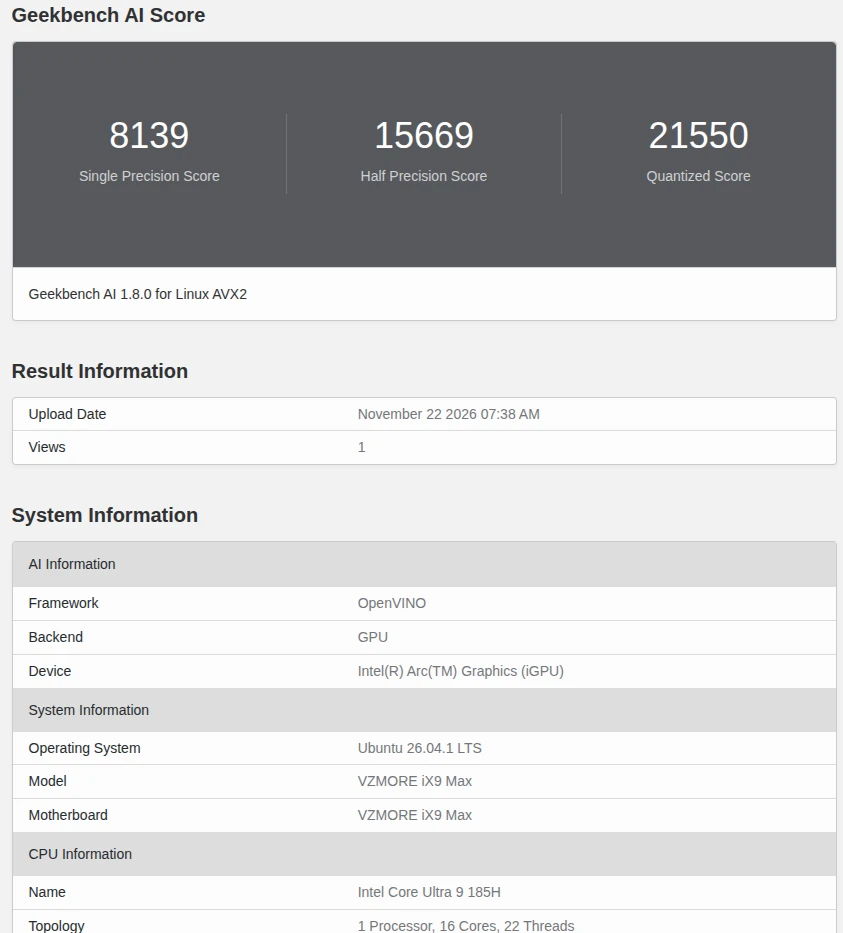
สามารถดูผลการทดสอบได้บนเว็บไซต์ Geekbench ทั้งสำหรับ backend CPU และ GPU
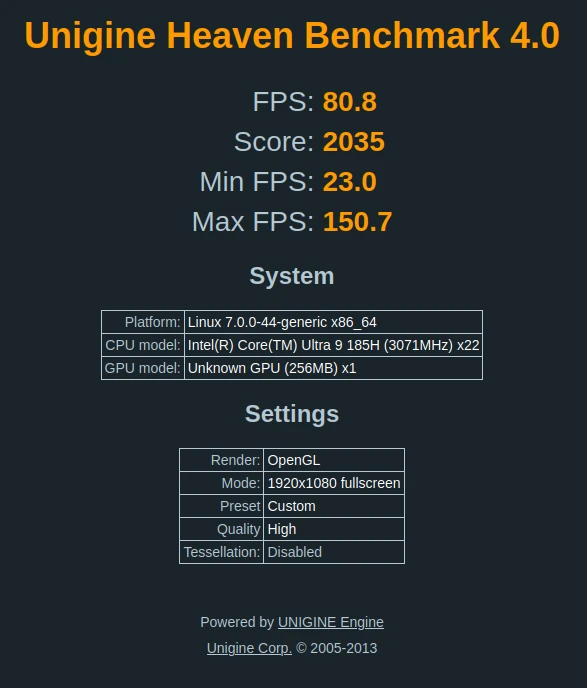
ต่อไปเราจะทดสอบประสิทธิภาพของ GPU ด้วย Unigine Heaven Benchmark 4.0 ทำคะแนนได้ 2,035 คะแนน อัตราเฟรมเฉลี่ย 80.8 FPS ที่ความละเอียดมาตรฐาน 1920×1080
ทดสอบการเล่นวิดีโอ YouTube 4K และ 8K ใน Firefox
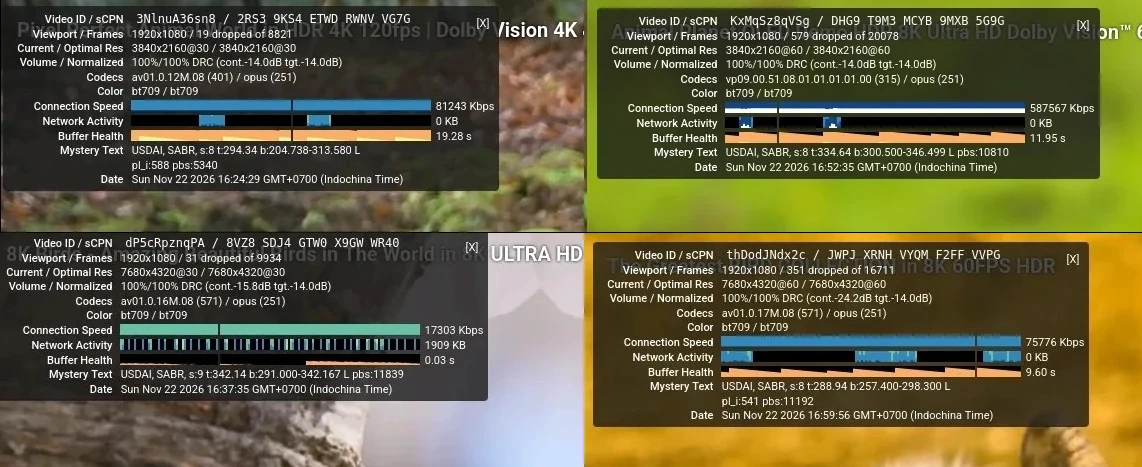
การเล่นวิดีโอ YouTube บน Firefox ความละเอียด 4K 30 FPS, 4K 60 FPS, 8K 30 FPS และ 8K 60 FPS สามารถเล่นได้ดี ถึงแม้ว่าการเล่นวิดีโอ 8K 60 FPS จะมีเฟรมที่หายไป 351 จาก 16,711 แต่ก็ยังคงเล่นได้อย่างไหลลื่น
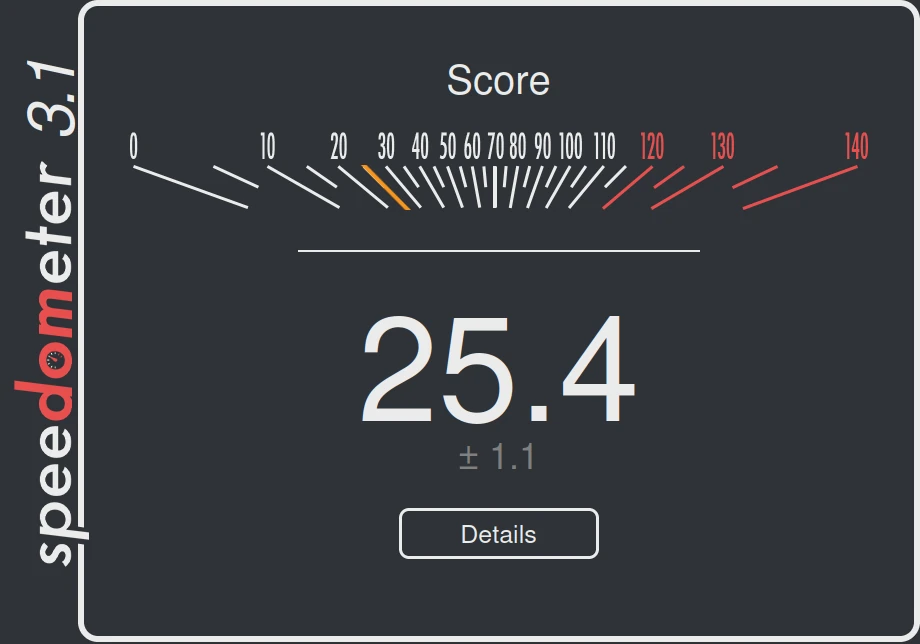
และทดสอบด้วย Speedometer 3.1 บน Firefox ผลลัพธ์ 25.4 คะแนน
การเปรียบเทียบ Benchmarks ของมินิพีซี VZMORE iX9 Max และมินิพีซีอื่น
เรามาเปรียบเทียบผลลัพธ์คะแนนของทดสอบ Benchmarks ของมินิพีซี iX9 Max และ GEEKOM IT13 Max
| VZMORE iX9 Max | GEEKOM IT13 Max | |
|---|---|---|
| SoC | Intel Core Ultra 9 185H | Intel Core Ultra 9 185H |
| CPU | 16-core/22-thread (6P+8E+2LP) Meteor Lake processor up to 5.1 GHz (P-cores), up to 3.8 GHz (E-cores), up to 2.5 GHz (LP-cores) | 16-core/22-thread (6P+8E+2LP) Meteor Lake processor up to 5.1 GHz (P-cores), up to 3.8 GHz (E-cores), up to 2.5 GHz (LP-cores) |
| GPU | 8 Xe cores Intel Arc Graphics | 8 Xe cores Intel Arc Graphics |
| Memory | 24GB LPDDR5 | 24GB LPDDR5 |
| Storage | 1TB NVMe SSD | 500GB NVMe SSD |
| Default OS | Windows 11 Pro | Windows 11 Pro |
| ราคาปกติ (19 Nov 2026 ) | ราคา $1,099 (~37,400฿) ที่ Amazon | ราคา $849 (~28,800฿) ที่ Amazon |
| VZMORE iX9 Max : Normal (40W) | GEEKOM IT13 Max | |
|---|---|---|
| sbc-bench.sh | ||
| - memcpy | 20,181.0 MB/s (P-Core) | 20,048.7 MB/s (P-Core) |
| - memset | 41,991.8 MB/s (P-Core) | 41,896.2 MB/s (P-Core) |
| - 7-zip (average) | 63,030 | 63,530 |
| - 7-zip (top result) | 64,289 | 65,756 |
| - OpenSSL AES-256 16K | 1,697,300.48k (P-Core) | 1,697,251.33k (P-Core) |
| Geekbench Single | 2,261 | 2,184 |
| Geekbench Multi | 15,134 | 14,980 |
| Geekbench AI on the CPU (OpenVINO) Quantized Score | 10,343 | 9,226 |
| Geekbench AI on the GPU (OpenVINO) Quantized Score | 21,550 | 21,260 |
| Unigine Heaven score | 2,035 | 1,866 |
| Speedometer 3.1 (Firefox) | 25.4 | 20.0 (3.0) |
การวัดประสิทธิภาพระบบเครือข่าย Wi-Fi 6/7 ของมินิพีซี VZMORE iX9 Max
iX9 Max มาพร้อม 2.5GbE จำนวน 2 พอร์ต โดยใช้ชิป Intel Ethernet Controller I226-V ซึ่งเป็นตัวเดียวกันกับ IT13 Max และเราได้ทดสอบประสิทธิภาพไปแล้ว จึงข้ามการทดสอบนี้ไป
เราได้ทดสอบประสิทธิภาพ Wi-Fi ของมินิพีซี VZMORE iX9 Max ซึ่งใช้ชิป MediaTek MT7925 ที่รองรับ Wi-Fi 7 แต่เนื่องจากเราไม่มีเราเตอร์ที่รองรับ Wi-Fi 7 จึงทดสอบผ่าน Xiaomi Mi Router AX6000 ด้วย Wi-Fi 6 บนย่านความถี่ 5GHz แทน
- Download
|
1 2 3 4 5 6 7 8 9 10 11 12 13 14 15 16 17 |
aey@ix9-max-CNX:~$ iperf3 -t 60 -c 192.168.31.12 -i 10 -R Connecting to host 192.168.31.12, port 5201 Reverse mode, remote host 192.168.31.12 is sending [ 5] local 192.168.31.239 port 50980 connected to 192.168.31.12 port 5201 [ ID] Interval Transfer Bitrate [ 5] 0.00-10.01 sec 1.08 GBytes 924 Mbits/sec [ 5] 10.01-20.01 sec 1.06 GBytes 914 Mbits/sec [ 5] 20.01-30.01 sec 1.06 GBytes 911 Mbits/sec [ 5] 30.01-40.01 sec 1.07 GBytes 921 Mbits/sec [ 5] 40.01-50.01 sec 1.08 GBytes 928 Mbits/sec [ 5] 50.01-60.01 sec 1.06 GBytes 909 Mbits/sec - - - - - - - - - - - - - - - - - - - - - - - - - [ ID] Interval Transfer Bitrate Retr [ 5] 0.00-60.01 sec 6.42 GBytes 918 Mbits/sec 120 sender [ 5] 0.00-60.01 sec 6.41 GBytes 918 Mbits/sec receiver iperf Done. |
- Upload
|
1 2 3 4 5 6 7 8 9 10 11 12 13 14 15 16 |
aey@ix9-max-CNX:~$ iperf3 -t 60 -c 192.168.31.12 -i 10 Connecting to host 192.168.31.12, port 5201 [ 5] local 192.168.31.239 port 41394 connected to 192.168.31.12 port 5201 [ ID] Interval Transfer Bitrate Retr Cwnd [ 5] 0.00-10.01 sec 1.06 GBytes 908 Mbits/sec 0 3.88 MBytes [ 5] 10.01-20.01 sec 1.09 GBytes 938 Mbits/sec 0 4.11 MBytes [ 5] 20.01-30.01 sec 1.10 GBytes 948 Mbits/sec 0 4.11 MBytes [ 5] 30.01-40.01 sec 1.09 GBytes 936 Mbits/sec 0 4.11 MBytes [ 5] 40.01-50.01 sec 1.05 GBytes 904 Mbits/sec 0 4.11 MBytes [ 5] 50.01-60.01 sec 1.09 GBytes 937 Mbits/sec 0 4.11 MBytes - - - - - - - - - - - - - - - - - - - - - - - - - [ ID] Interval Transfer Bitrate Retr [ 5] 0.00-60.01 sec 6.49 GBytes 928 Mbits/sec 0 sender [ 5] 0.00-60.02 sec 6.49 GBytes 928 Mbits/sec receiver iperf Done. |
ผลการทดสอบดาวน์โหลดด้วย iperf3 ได้ความเร็วเฉลี่ยประมาณ 918 Mbps และความเร็วอัปโหลดอยู่ที่ประมาณ 928 Mbps
การทดสอบ Bluetooth
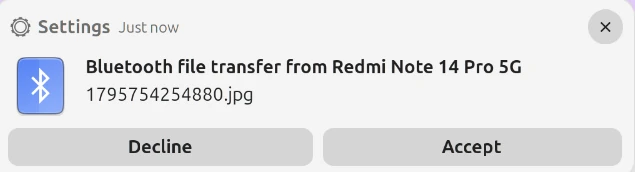
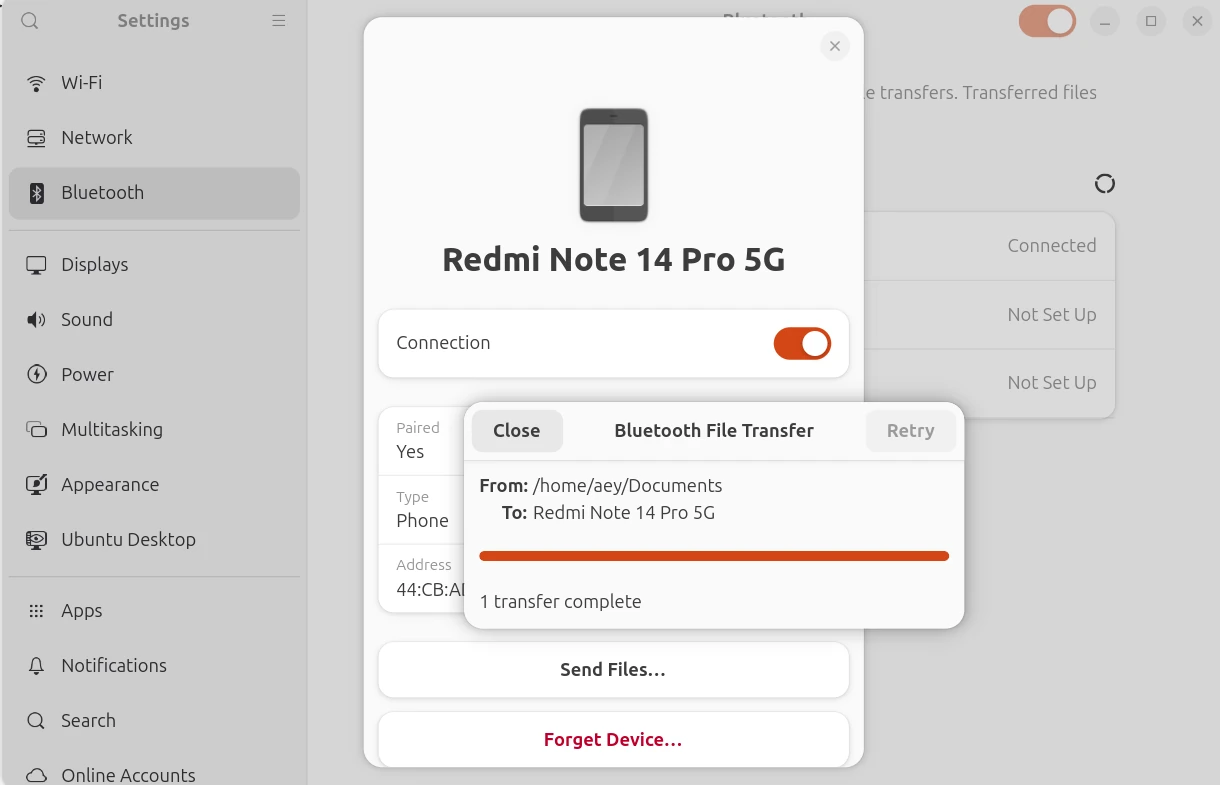
มินิพีซีรุ่นนี้รองรับ Bluetooth 5.4 เราได้ทำการทดสอบการรับส่งไฟล์ผ่าน Bluetooth ไปยังสมาร์ทโฟน Redmi Note 14 Pro 5G ซึ่งสามารถทำงานได้สำเร็จ
รับไฟล์ผ่าน Bluetooth :
ส่งไฟล์ผ่าน Bluetooth :
การทดสอบ Stress Test และอุณหภูมิ CPU
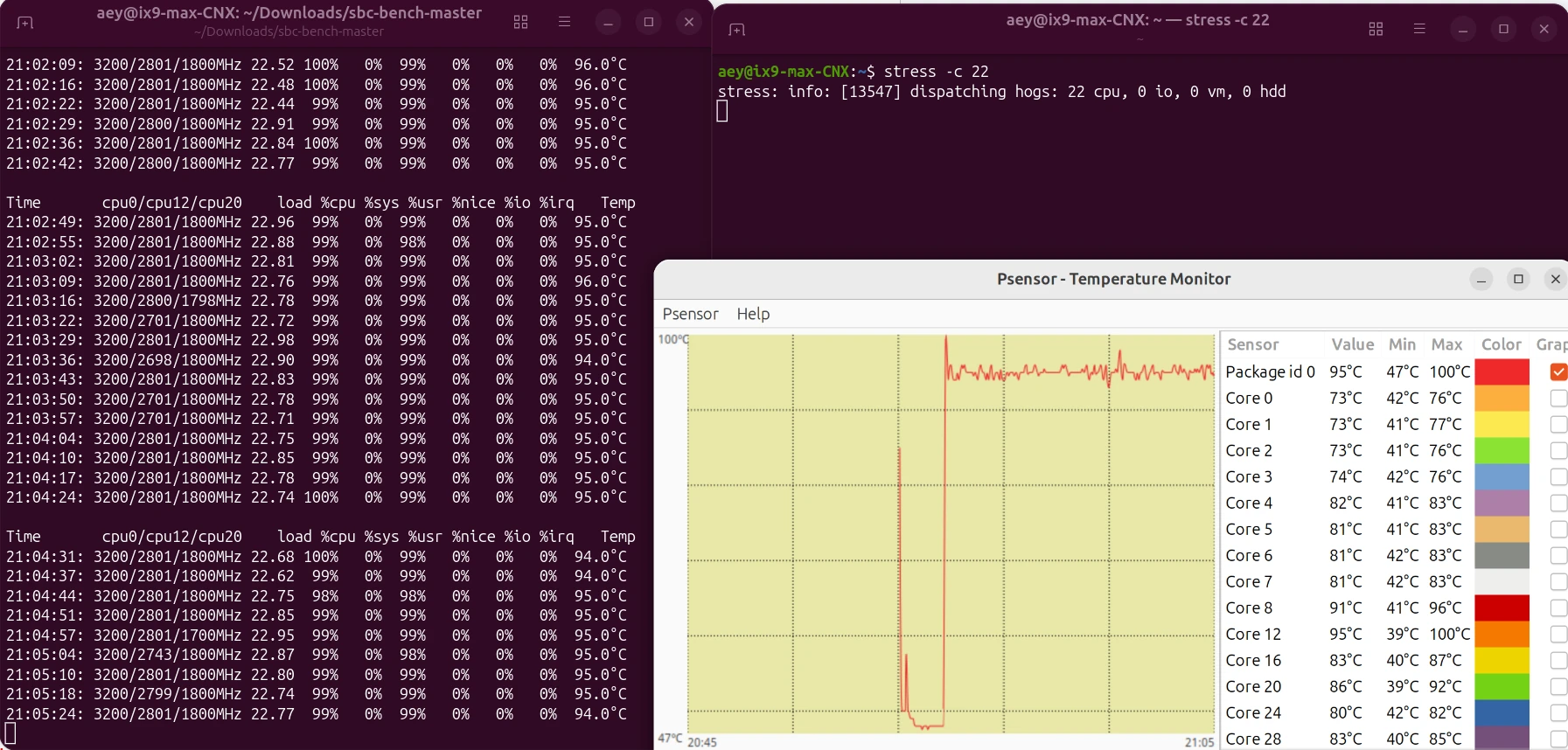
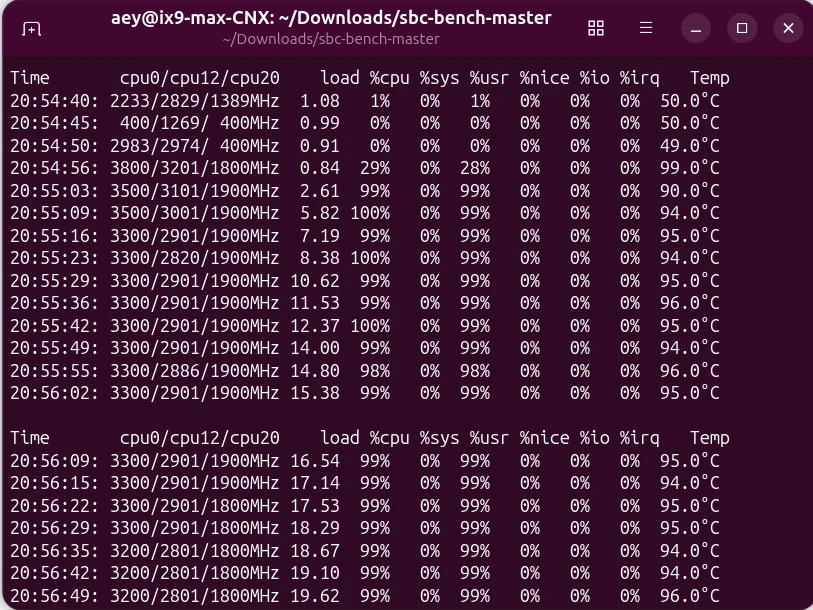
ในการทดสอบ Stress Test เราใช้คำสั่ง stress -c 22 เพื่อโหลด CPU ทั้ง 22 Threads ของ Intel Core Ultra 9 185H
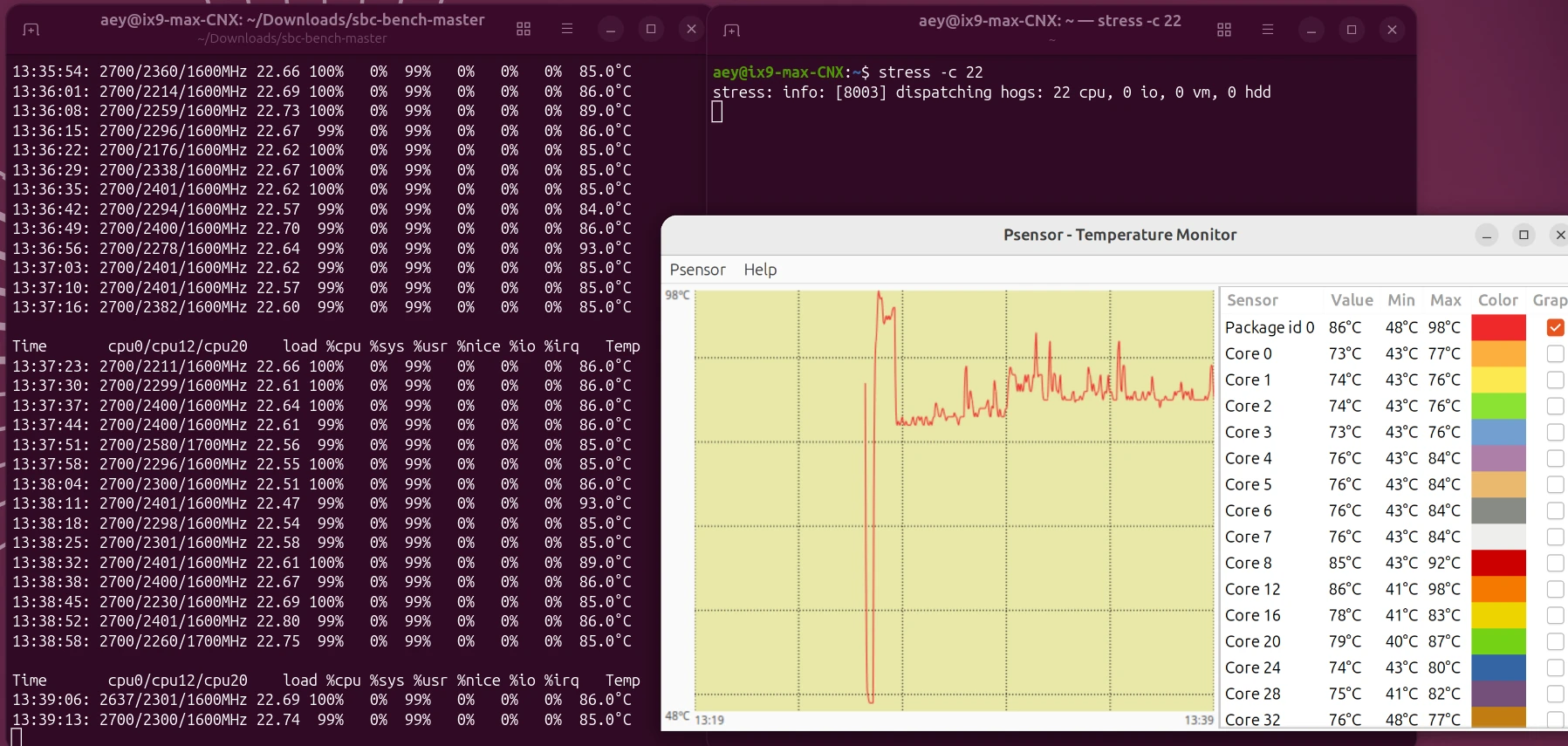
โดย CPU ทำงานเต็มประสิทธิภาพที่ระดับ 99–100% ในช่วงเริ่มต้นความถี่ CPU0, CPU12 และ CPU20 ขึ้นไปสูงสุดประมาณ 3.5, 3.3 และ 1.9GHz ตามลำดับ ก่อนปรับลดลงมาอยู่ที่ประมาณ 2.7, 2.3 และ 1.6GHz เมื่อทำงานต่อเนื่อง อุณหภูมิ CPU Package เพิ่มขึ้นจากประมาณ 50°C เป็น 91–95°C ในช่วงเริ่มต้น และรักษาระดับอยู่ที่ประมาณ 82–89°C ขณะโหลดต่อเนื่อง โดยมีอุณหภูมิสูงสุดที่บันทึกได้ 98°C
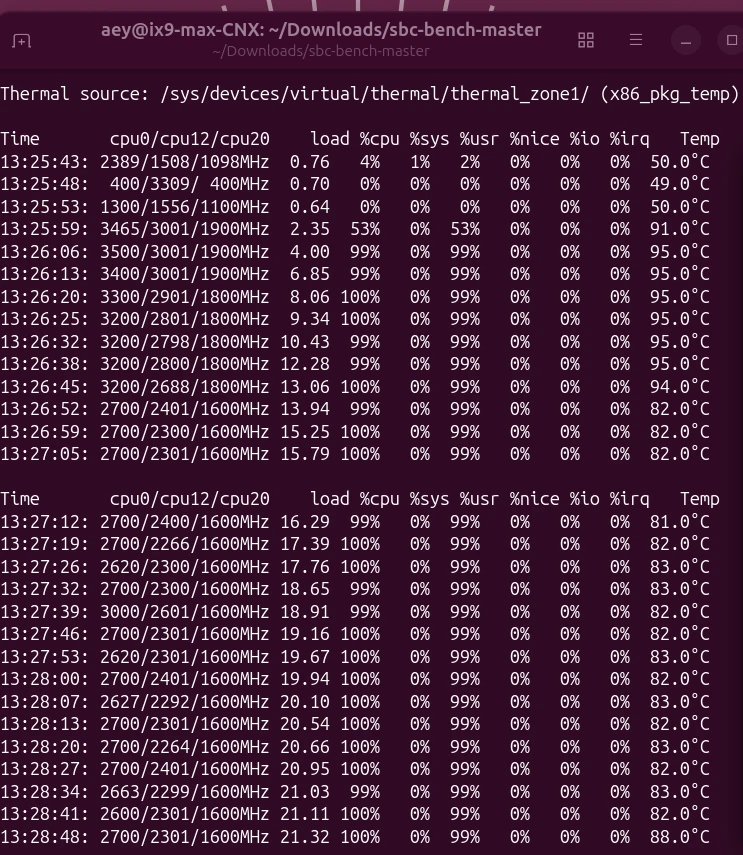
65W
|
1 2 3 4 5 6 7 8 9 |
aey@ix9-max-CNX:~$ sudo turbostat --quiet -S --show Busy%,Bzy_MHz,PkgTmp,PkgWatt\ > [sudo: authenticate] Password: Busy% Bzy_MHz PkgTmp PkgWatt 99.76 3014 94 60.76 99.76 3001 94 60.43 99.76 2996 94 60.34 99.76 2994 94 60.21 ^C99.76 2999 94 60.39 |
เสียงพัดลม VZMORE iX9 Max
โดยเราได้วัดเสียงรบกวนด้วยเครื่องวัดระดับเสียงที่วางห่างจากเคสด้านบนประมาณ 5 ซม.
- ไม่ได้ใช้งาน (Idle) : 37.2 – 38.4 dBA,
- การทดสอบ Stress Test บน 22 Threads : 55.0 – 55.7 dBA
(เครื่องวัดระดับเสียงวัดค่าห้องที่เงียบ 36.6 – 37.1 dBA)
การใช้พลังงาน VZMORE iX9 Max
- ปิดเครื่อง : 0.8 – 0.9 วัตต์
- ไม่ได้ใช้งาน (Idle) : 6.7 – 7.2 วัตต์
- การเล่นวิดีโอ YouTube 8K 60fps ใน Firefox : 22.7 – 24.0 วัตต์
- การทดสอบ Stress Test บน 22 Threads (45W)
- ไม่กี่วินาทีแรก : 91.4 – 95.0 วัตต์
- ขณะโหลดต่อเนื่อง : 60.9 – 63.7 วัตต์
- การทดสอบ Stress Test บน 22 Threads (55W)
- ไม่กี่วินาทีแรก : 107.1 – 108.1 วัตต์
- ขณะโหลดต่อเนื่อง : 71.9 – 74.6 วัตต์
หมายเหตุ : มินิพีซีเชื่อมต่อกับ Wi-Fi, RF dongle เสียบเข้ากับพอร์ต USB-A 1 ช่องสำหรับคีย์บอร์ด, RF dongle เสียบเข้ากับพอร์ต USB-A 1 ช่องสำหรับเมาส์, และ KTC A32Q8 Smart Monitor จอมอนิเตอร์ 4K ขนาด 32 นิ้วผ่านพอร์ต HDMI 2.0
สรุป
จากการทดสอบ VZMORE iX9 Max ที่ใช้ซีพียู Intel Core Ultra 9 185H บน Ubuntu 26.04.1 พบว่าสามารถทำงานได้ดีทั้งด้านประสิทธิภาพ CPU และ GPU โดยได้คะแนน Geekbench 7 แบบ Single-Core 2,261 คะแนน และ Multi-Core 15,134 คะแนน รวมถึงสามารถใช้งาน Intel Arc Graphics กับ Geekbench AI ผ่าน OpenVINO ได้หลังติดตั้งแพ็กเกจเพิ่มเติม ด้านเครือข่าย Wi-Fi 6 ทำความเร็ว Download และ Upload ได้ประมาณ 918 และ 928 Mbps ตามลำดับ ขณะที่การทดสอบ Stress Test ด้วย CPU ทั้ง 22 Threads พบว่าระบบสามารถรักษาการทำงานต่อเนื่องได้ โดยมีอุณหภูมิ CPU Package อยู่ที่ประมาณ 82–89°C และสูงสุด 98°C พร้อมระดับเสียงพัดลมประมาณ 55 dBA และใช้พลังงานประมาณ 61–64W เมื่อโหลดต่อเนื่อง เมื่อเปรียบเทียบกับ GEEKOM IT13 Max ที่ใช้ซีพียูรุ่นเดียวกัน พบว่าประสิทธิภาพโดยรวมใกล้เคียงกัน VZMORE iX9 Max จึงเป็นมินิพีซีที่ให้ประสิทธิภาพดีสำหรับงานทั่วไป งานประมวลผลหนัก และการใช้งาน Linux
ขอขอบคุณบริษัท VZMORE ที่ได้ส่งมินิพีซี iX9 Max พร้อมซีพียู Intel Core Ultra 9 185H, RAM ขนาด 24GB และ M.2 SSD ความจุ 1TB มาให้เราทดสอบ สามารถสั่งซื้อในราคา $934.15 (~32,000฿) บน Amazon US หรือ $806.65 (~28,000฿) ผ่านเว็บไซต์ VZMORE US เมื่อใช้โค้ดส่วนลด 15% IX9CNXSOFT ทางบริษัทแจ้งกับ CNX Software ว่าโค้ดส่วนลดนี้สามารถใช้ได้กับ VZMORE UK และ Amazon UK เช่นกัน โดยมีระยะเวลาถึงวันที่ 30 ธันวาคมนี้

บรรณาธิการข่าวและบทความภาษาไทย CNX Software ได้มีความสนใจในด้านเทคโนโลยี โดยเฉพาะ Smart Home และ IoT